Warnings as Errors
Why I configure every .NET project to treat compiler warnings as build-breaking errors, and how to turn it on in Visual Studio or csc.exe.

Warning:
A: To give notice to beforehand especially of danger or evil
B: To give admonishing advice
C: To call to one’s attention
With that said, we could infer that a warning is something that says “Hey, this is kind of important, you might want to watch this.” To me, in .NET Development, a warning means I’ve done something wrong, I’ve created an error.
To ensure my builds are top notch, I have updated my projects to treat Warnings as Errors. This allows me to be notified of something immediately. If a warning occurs, its foresight into the future. Warning: “This is what could happen.” Pretty much that means, you should probably fix that right now. Therefore I dont let builds complete if there are warnings in certain projects.
Here’s how to do it…
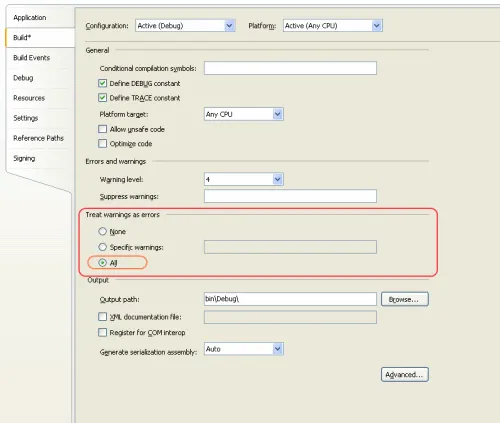
- Go to the project properties and select the Build Tab.
- Select “All” under Treat Warnings as Errors
3. Save and build.
Now, lets say you have a variable thats created but not used in a method somewhere, you’d get an error screen like this:

The build will fail locally as well as on your build server.
This will help alleviate errors in the future that may be caused by something that was a warning two months ago. 🙂
You can also accomplish through the command line compiler:
csc.exe /warnaserror
This compiler switch will treat warnings as errors.
*Note: You might want to leave this option in its default state for projects where a warning is ommitted automatically, like set up projects that publish to a local system. This is something that I’m ok with as we publish it locally anyway.